Annotation interface
Create and manage annotations directly in the BIION-D Cloud Panel.
BIION-D Cloud includes an editor for annotating images without leaving the platform. The editor opens over the Models page and refreshes the previous view with the saved annotations when you return.
The editor is available for Object Detection, Object Segmentation, and Defect Classification once that model reaches its annotation phase. Availability may depend on the license associated with the model.
Opening the editor
You can open the editor in either of these ways:
- hover over a model card and select the tag icon;
- open the model and select Annotations in the gallery toolbar.
Use the arrow in the upper-left corner to return to the previous view. BIION-D finishes any pending saves before closing the editor.
Interface layout
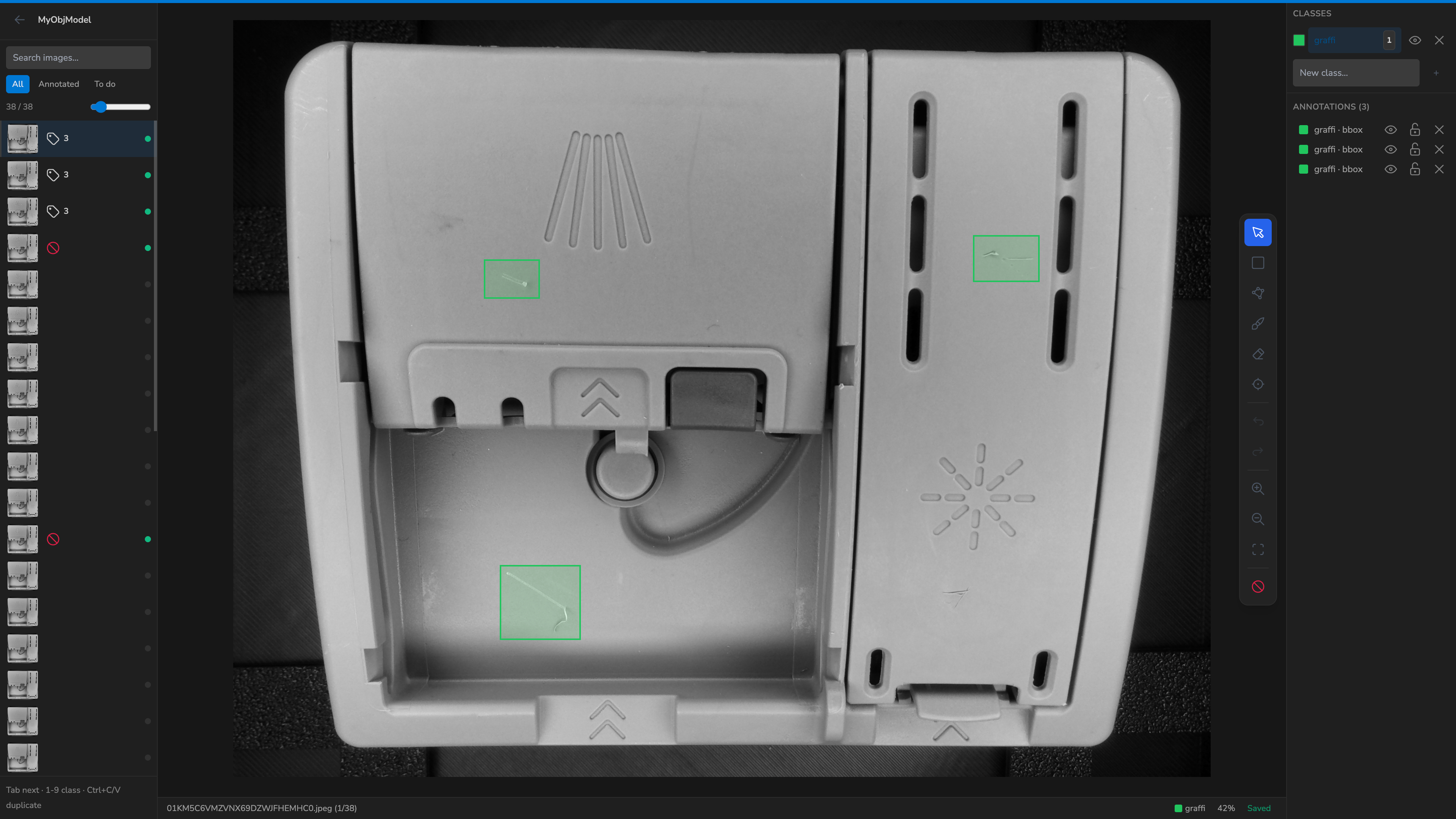
The editor has three main areas:
| Area | Contents |
|---|---|
| Images | Search, filters, thumbnails, and completion status |
| Canvas | Current image, drawing tools, zoom, and save status |
| Classes and annotations | Available classes and objects in the current image |
In the image sidebar, you can search for an image, filter by All, Annotated, or To do, and adjust the thumbnail size.
Image filters preview
Classes
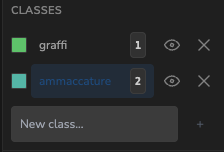
Select the class you want to assign before drawing an object.
- To create a class, enter its name in New class… and press + or
Enter. - To change its color, select the color swatch next to the class.
- Use the eye icon to show or hide all annotations assigned to the class.
- Deleting a class leaves its annotations in the image as unclassified.
- Selecting a class while objects are selected assigns that class to those objects.
- The first nine classes can be selected with
1–9when the corresponding shortcut is displayed.
The selected color is also used in the gallery and image viewer.
Tools
| Tool | Shortcut | Use |
|---|---|---|
| Select | V |
Select, move, and resize objects; edit polygon vertices |
| BBox | B |
Drag on the canvas to create a bounding box |
| Polygon | P |
Click to add vertices and close the shape with a double-click or Enter |
| Brush | U |
Paint a mask for the selected class |
| Eraser | E |
Remove parts of the current mask |
| SAM point | S |
Request an annotation proposal from a point when the service is configured |
For Brush and Eraser, adjust the stroke size with the slider or [ and ]. When an object is complete, press OK or Enter; the next stroke will start a new object.
SAM point is an experimental control: it produces a result only when its service is configured in the environment. It is not required for the standard annotation workflow.

Editing annotations
The Annotations panel lists every object in the current image. Use it to select, hide, lock, or delete objects. Hold Shift to add or remove an object from a multi-selection. Locked objects cannot be edited on the canvas until they are unlocked.
Main shortcuts:
| Action | Shortcut |
|---|---|
| Undo | Ctrl+Z |
| Redo | Ctrl+Shift+Z or Ctrl+Y |
| Copy selection | Ctrl+C |
| Paste a copy | Ctrl+V |
| Delete selection | Delete or Backspace |
| Show/hide selection | H |
| Lock/unlock selection | L |
| Cancel a shape or clear selection | Esc |
| Fit to screen | F |
| Next/previous image | Tab / Shift+Tab |
Images with no objects
If an image contains no objects to annotate, select Ø. The image is marked as complete with no objects and any existing annotations are removed. Select Ø again, draw a new annotation, or use Undo to remove the mark.
Null button preview
Saving
Changes are saved automatically. The status appears in the bar below the canvas. Saving is also completed when you change images or close the editor.
Do not close the browser tab while the status shows that a save is in progress. If the connection is temporarily interrupted, keep the page open until the status returns to saved.
Continuing the workflow
After returning to the gallery:
- inspect the shapes with Show Annotations;
- use the filters to find images that still need work;
- start training once the dataset requirements are satisfied.
See also Image gallery and Object Detection and Segmentation.