Image gallery
Browse, filter, and manage the images in a model dataset.
The gallery contains the images in a model dataset. Open it by selecting a card on the Models page.
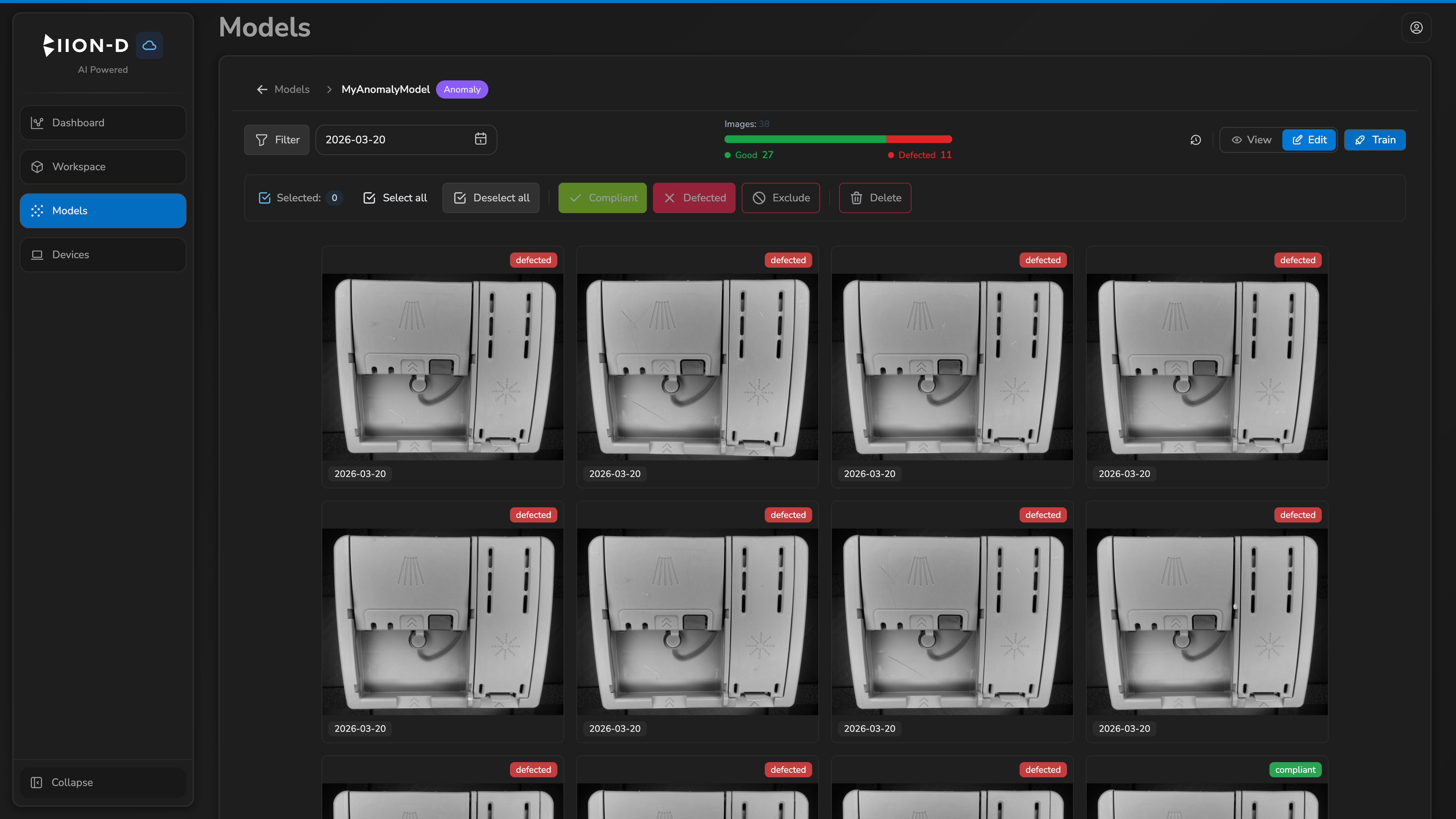
The upper toolbar shows the model name and type, the available filters, dataset statistics, and the actions supported by the model type.
Viewing and editing
When available, the View and Edit controls change how image selection works:
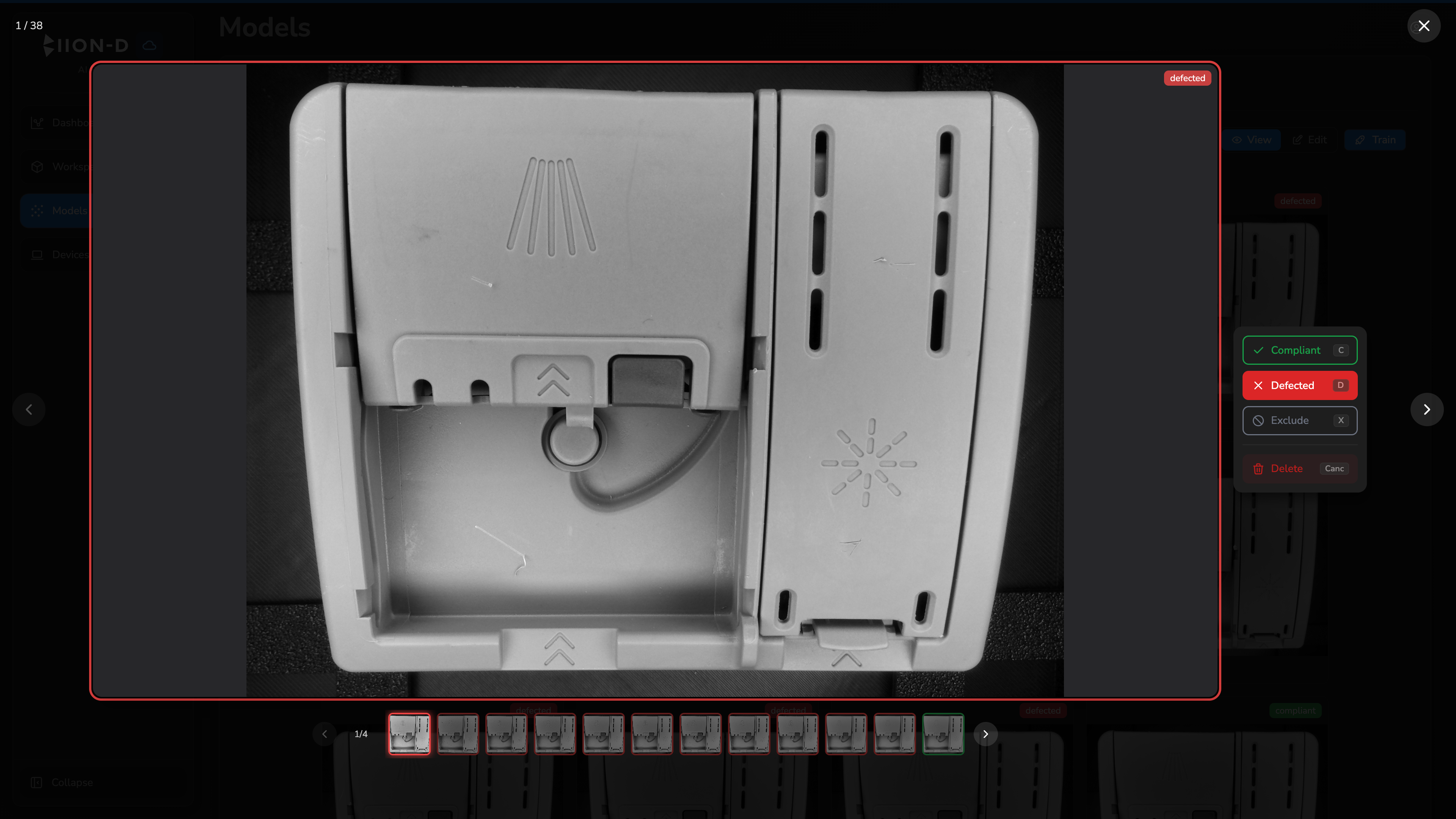
- in View, select a thumbnail to open it in the image viewer;
- in Edit, select one or more images to perform bulk operations.
The browser remembers the selected mode.
Filters
Select Filter to open the category filters. Their options depend on the model:
- Compliance for compliant, defected, or unclassified images;
- Annotations for annotated, not annotated, or no-object images.
The date field next to Filter separately restricts images by capture date.
Filters can be combined. If there are no results, remove one or more criteria from the panel.
Showing annotations
For models that use annotations, Show Annotations displays or hides bounding boxes and polygons on the thumbnails. Their colors match those configured in the annotation interface.
In View mode, select a thumbnail to inspect the image and its shapes in the image viewer.
Bulk operations
Edit mode displays the selection bar:
- select the required images or use Select all;
- check the number next to Selected;
- run one of the available actions;
- use Deselect all to clear the selection.
For AnomalyDetection, you can assign Compliant or Defected. The following actions are also available:
- Exclude, which removes the compliance assignment without deleting the image;
- Delete, which asks for confirmation and removes the images.
Compliance actions are not available for standard Object Detection and Object Segmentation models.
Pagination
The gallery initially displays 12 images per page. Use the arrows or page numbers to navigate and Per page to select 6, 12, or 100 items.
Model actions
Depending on the model type, phase, and license, the toolbar may show:
- Annotate, to open the integrated editor;
- Train, to check the requirements and start training;
- a history icon with the View training history tooltip, to review training runs and exported results.
In Training History, expand a completed run, select an exported model and Target device…, then choose Download. The device configures the export; the resulting ZIP file is downloaded by the browser.
If the required license is missing or expired, annotation and training actions are unavailable.