Models
Upload, manage and review AI models and their associated image datasets.
The Models page manages the AI models used for inference in your pipelines. You can upload new models, browse their datasets, relabel images, download models and sync data to the cloud.
Model Cards
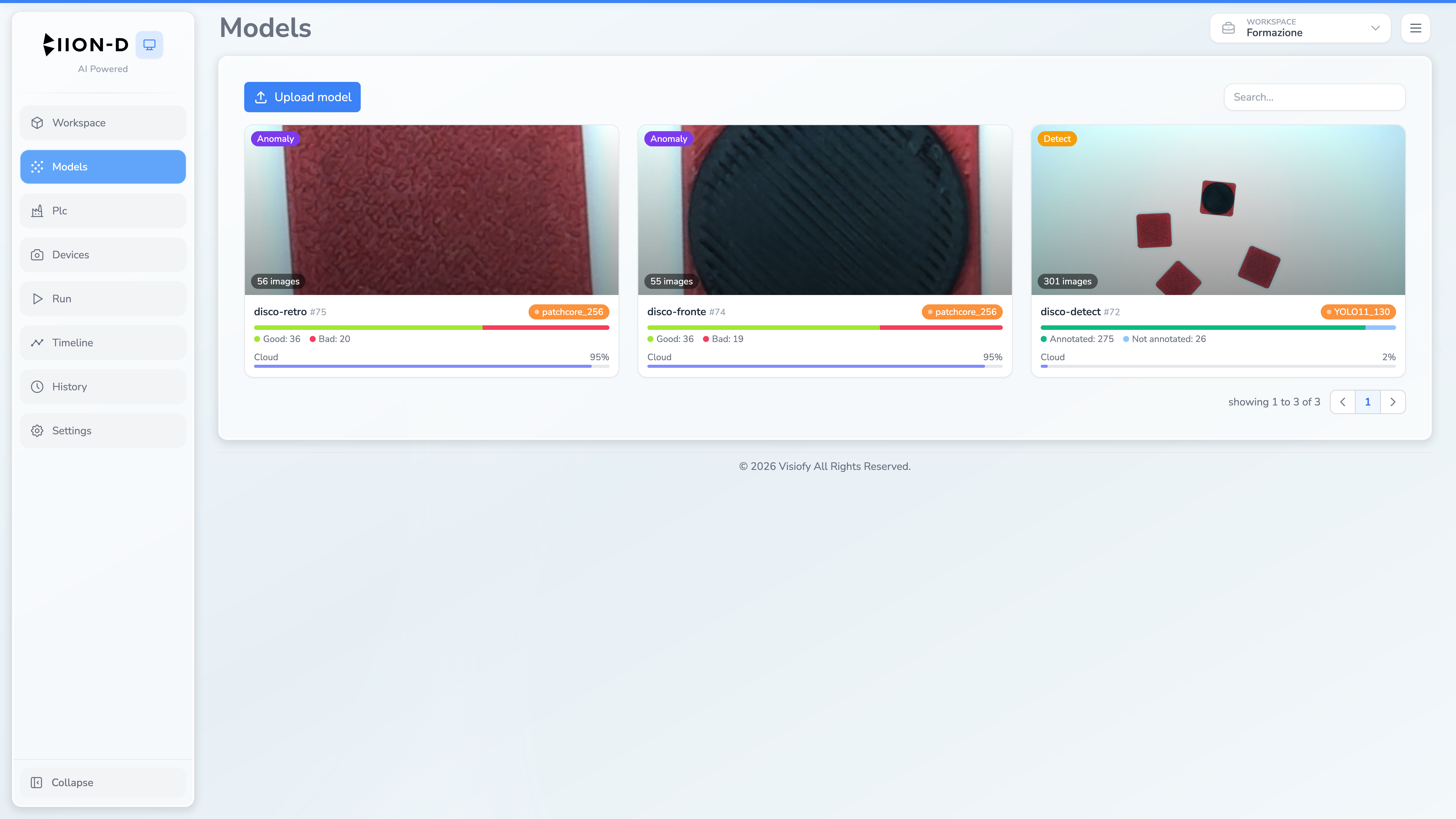
The main view is a searchable, paginated grid of model cards.
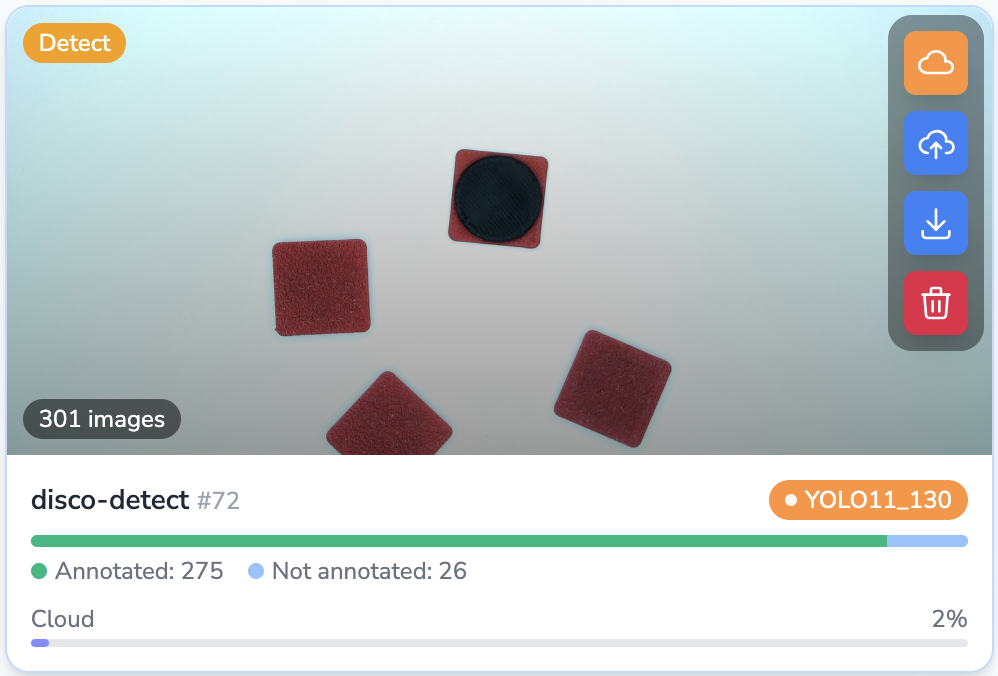
Each card shows the model name and type, dataset counts by label, cloud synchronization status, model ID and whether the model is loaded. Move the pointer over a card to reveal the available actions.
Browsing a Dataset
Select a model card to open its dataset gallery.
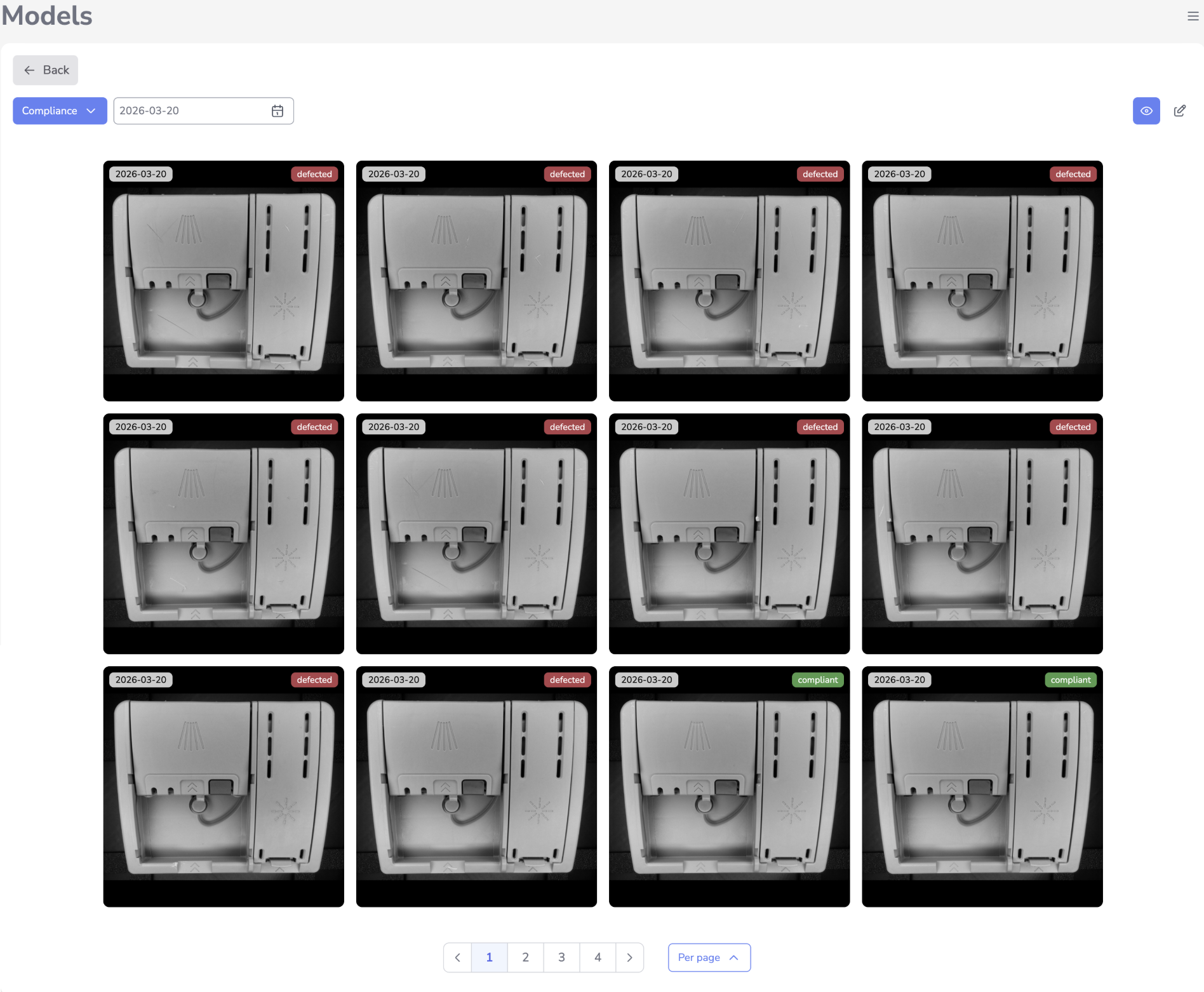
The gallery shows:
- Image cards — each card displays the captured image with its timestamp
- Compliance labels — for Anomaly Detection models, a colored badge (green/yellow/red/black) shows the compliance status of each image
- Pagination — choose 6, 12 or 24 images per page
- Filters — filter by label, date and cloud upload state
- Date range — filter images by capture date
- View/Edit mode — inspect images or enable bulk selection
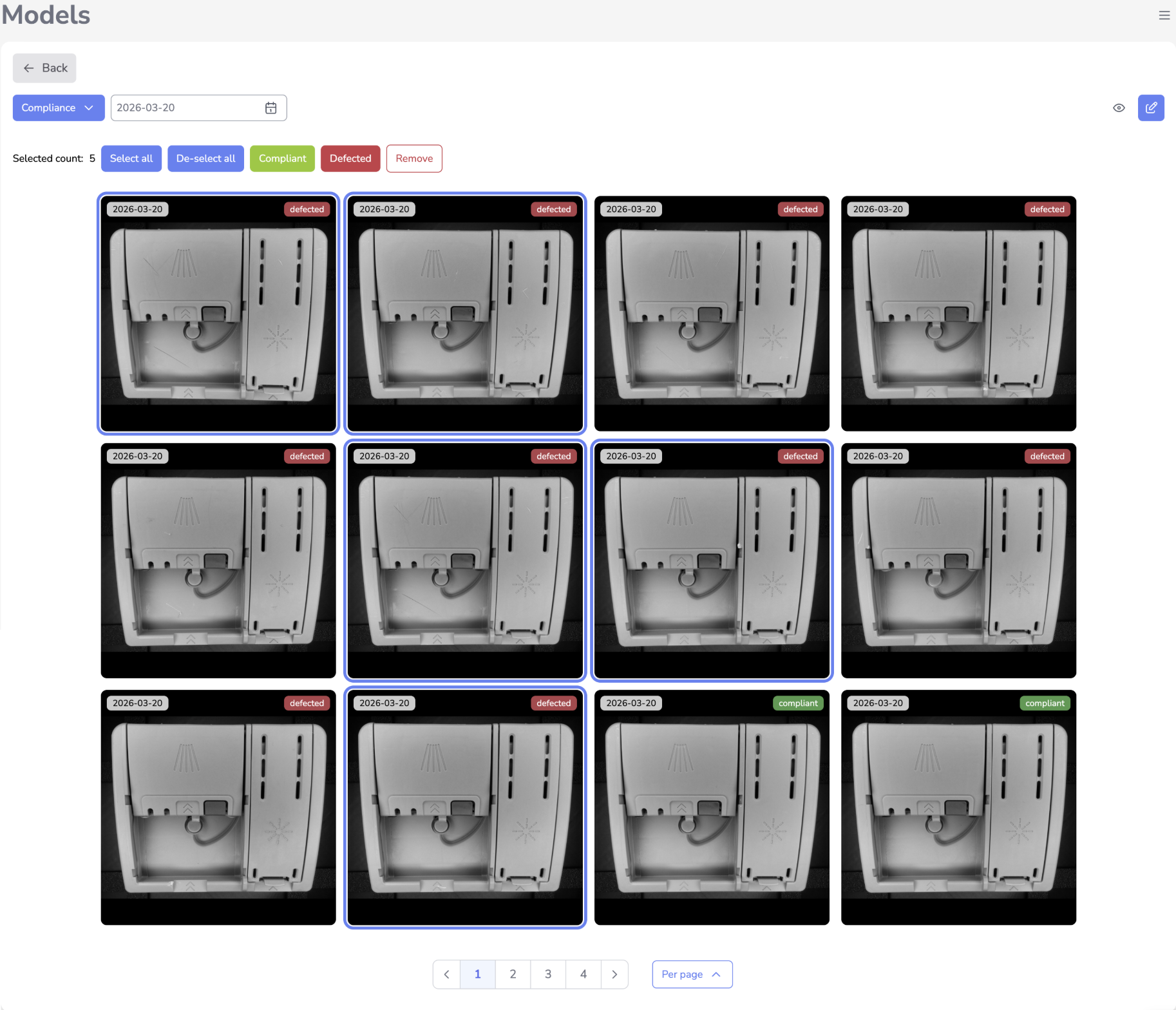
Relabeling Images (Anomaly Detection)
For Anomaly Detection models, toggle buttons appear above the gallery to bulk-relabel selected images:
- Select images using the selection controls
- Select Compliant, Defected or Remove
- The images are relabeled and the gallery refreshes
Relabeling only applies to Anomaly Detection type models.
Uploaded images are hidden by default. Disable Hide uploaded when you need to inspect them.
Training and Importing a Model with Internet
Upload the dataset to the cloud
On the model card, click Upload dataset to cloud  . Choose the upload options, then start the upload.
To make previously uploaded images available for upload again, click Reset uploads in the upload dialog and confirm. This resets the upload status of all previously uploaded images in that model, regardless of the current selection or filters. It does not start an upload or remove images already in the cloud.
The Cloud bar on the card shows the number of uploaded images. After upload, change compliance labels in the Cloud Panel. They cannot be edited here.
Wait for the upload to finish
Wait until the dataset upload completes before starting training.
Start training
Choose one of the following options:
- Click the orange button
 to train the model from this interface.
 - Open the Cloud Panel and start training there.
Import the trained model
When training finishes, click the orange button . Select the trained model to import it to the device.
Training and Importing a Model without Internet
Start the upload
After training a model in the Cloud Panel, click  above the card grid. Use this workflow when the device has no internet connection.
Select the model package
Choose the .zip model package downloaded from the Cloud Panel.
Wait for installation
A notification appears while the model uploads. The page reloads when installation completes.
Returning to the Model Grid
Click ← Back above the gallery to return to the model grid.
Downloading a Model
Open the download action on a card to export the dataset as a ZIP archive. The archive contains selected images and metadata; it is not a download of the trained model artefacts.
Deleting a Model
Open the trash action on the card and confirm.
Deleting a model permanently removes it and all associated images. This action cannot be undone.