Network
Configure network interfaces including DHCP and static IP settings.
The Network tab allows you to configure the system’s network interface.
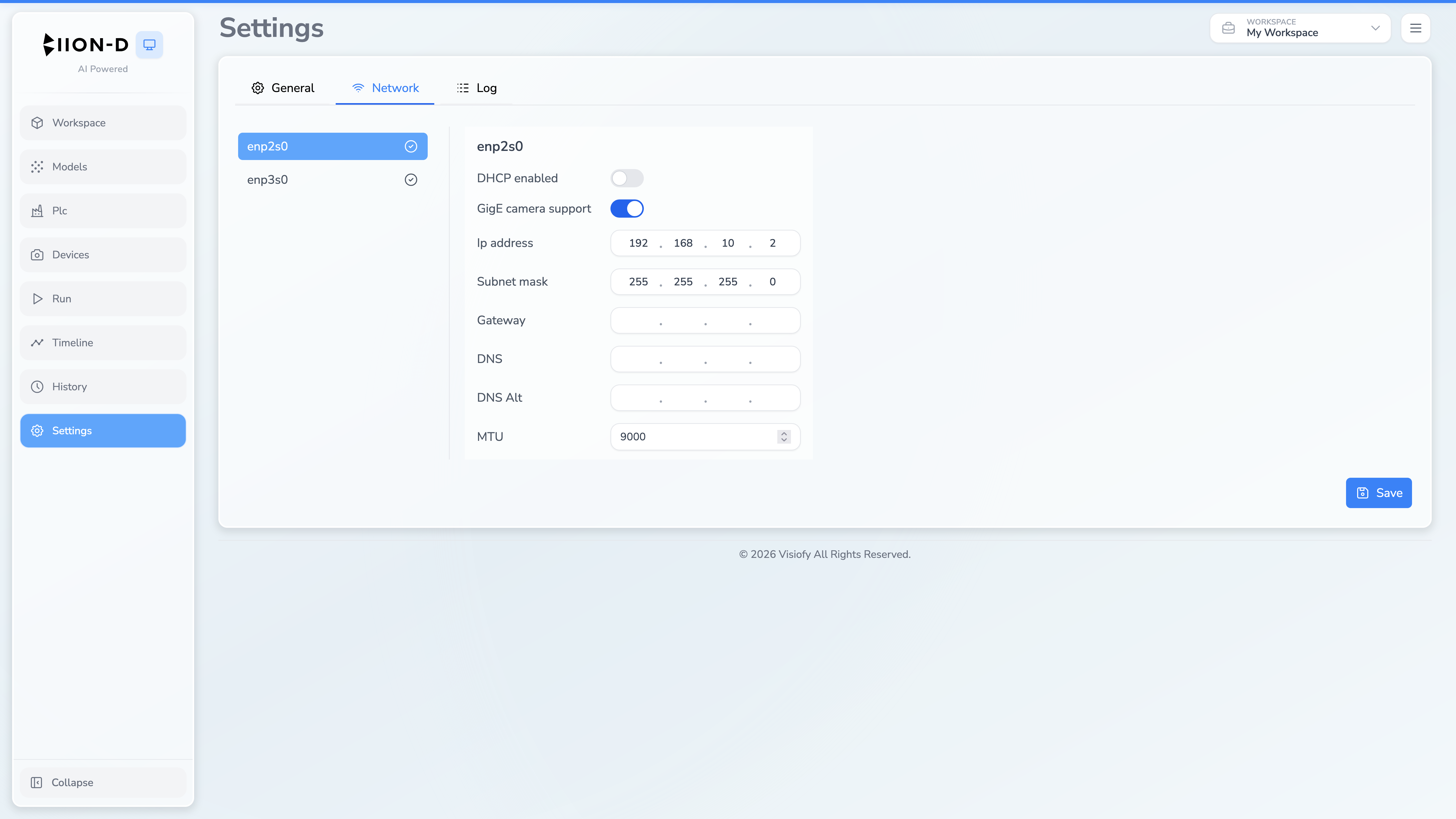
Configuration Options
The network settings include:
| Setting | Description |
|---|---|
| DHCP enabled | Toggle between automatic (DHCP) and manual (static) network configuration |
| Network interface | Select which network interface to configure |
| IP address | Static IP address (disabled when DHCP is enabled) |
| Subnet mask | Network subnet mask |
| Gateway | Default gateway address |
| DNS | DNS server address |
| DNS Alt | Optional alternate DNS server |
| GigE camera support | Applies the network settings required for GigE cameras |
| MTU | Interface MTU, from 1500 to 9000 |
Applying Network Settings
After making changes, click the Save button to apply the new configuration.
Changing network settings may temporarily disconnect you from the system. Ensure you know the new IP address before applying changes so you can reconnect.
DHCP vs. Static IP
When DHCP is enabled, all IP configuration fields are grayed out and the system obtains its network settings automatically from the network’s DHCP server.
When DHCP is disabled, IP address and subnet mask are required. Gateway and DNS values are optional according to the target network.
Only managed Ethernet profiles available to BIION-D are listed. Enabling GigE camera support sets the interface for jumbo frames and camera traffic.