PLC Connections
Add, edit and monitor PLC (Programmable Logic Controller) connections.
The PLC tab manages connections to Programmable Logic Controllers used for industrial automation.
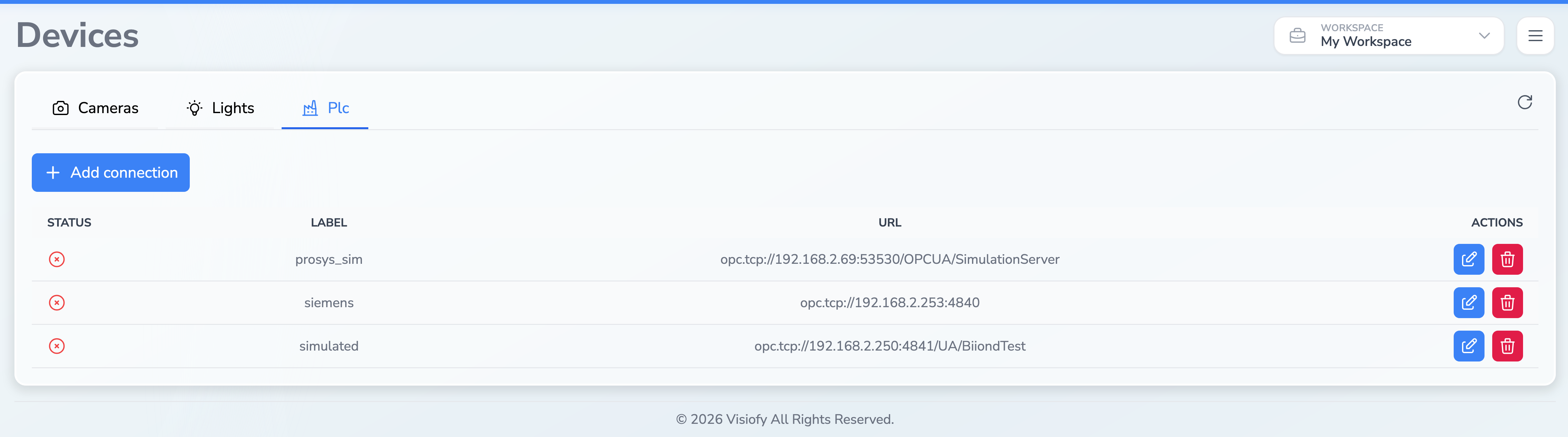
PLC Table
| Column | Description |
|---|---|
| Status | Connection status indicator: ✅ connected (green), ❌ disconnected (red), ❓ unknown (gray) |
| Label | Name assigned to the PLC connection |
| URL | The address used to communicate with the PLC |
| Actions | Edit and Delete buttons |
PLC connection statuses are polled automatically every 2.5 seconds. The status indicators update in real time without needing to refresh the page.
Adding a PLC Connection
Click Add Connection
Click the Add connection button above the PLC table.
Configure the Connection
The PLC edit modal opens. Fill in the required fields:
- Label — a unique name for this PLC connection
- URL — the network address of the PLC
- Username — optional connection username
- Password — optional connection password
Save
Click Save to create the connection. The page reloads and the new PLC appears in the table.
Editing a PLC Connection
Click the edit icon in the Actions column to reopen the PLC connection modal. Modify the fields and select Save. Keep the label unchanged when editing an existing connection; changing it creates a new named entry.
Deleting a PLC Connection
Click the trash icon in the Actions column. A confirmation dialog will appear before the PLC connection is permanently removed.
Deleting a PLC connection will immediately disconnect it from the system. Any PLC tasks referencing this connection will no longer function until reconfigured.