Cameras
View and control connected cameras including ownership and labeling.
The Cameras tab displays all detected cameras as individual cards.
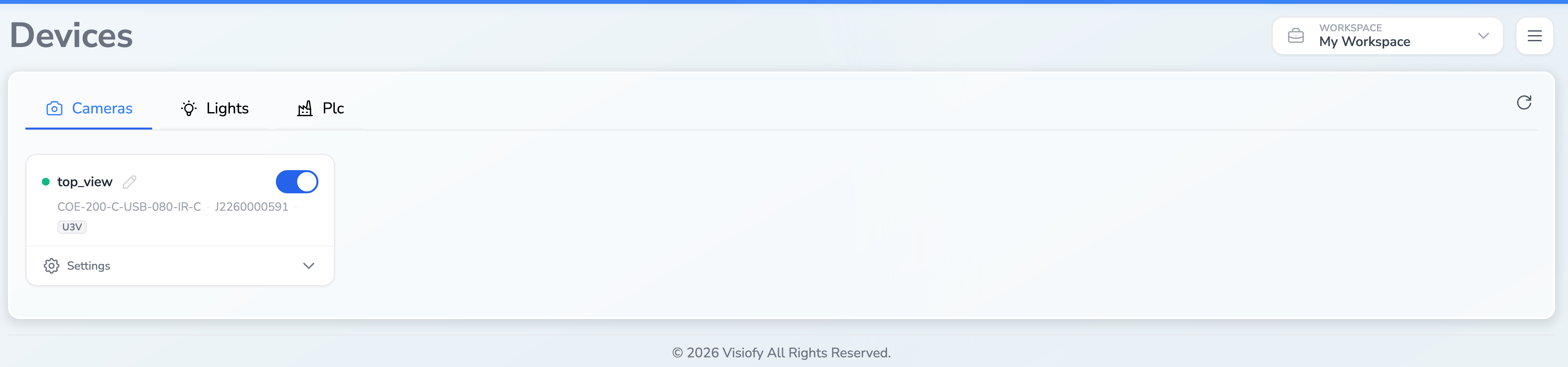
Camera Cards
Each camera card displays:
- camera label, model and serial number;
- connection type such as ETH or USB;
- current status and any device error;
- On/Off toggle — acquire or release camera ownership
If no cameras are detected, the message “No camera detected” is displayed.
Acquiring / Releasing Camera Ownership
Use the toggle switch on each camera card to control ownership:
- Toggle ON — acquires exclusive ownership of the camera. Only one process can own a camera at a time. When acquired, additional configuration fields become visible.
- Toggle OFF — releases the camera, making it available to other processes.
Renaming a Camera
When a camera is open, select the pencil control beside its label:
- Enter a non-empty, unique label.
- Press Enter or use the confirmation control.
- Press Escape to cancel editing.
The page reloads after the change. Renaming is unavailable while an inspection is running.
Camera labels are used in pipeline configurations to reference specific cameras. Make sure your pipeline modules use the correct label.
Camera Settings
Open Settings on a camera card to access supported maintenance and network controls.
For an Ethernet camera you can configure IP address, subnet and optional gateway. A temporary address can be applied while the camera is closed; persistent network settings are available when the camera is open. Temporary settings are lost when the camera restarts.
Use firmware reset only when required by the camera troubleshooting procedure. Camera controls are temporarily disabled while acquire, release, reset or network changes are in progress.